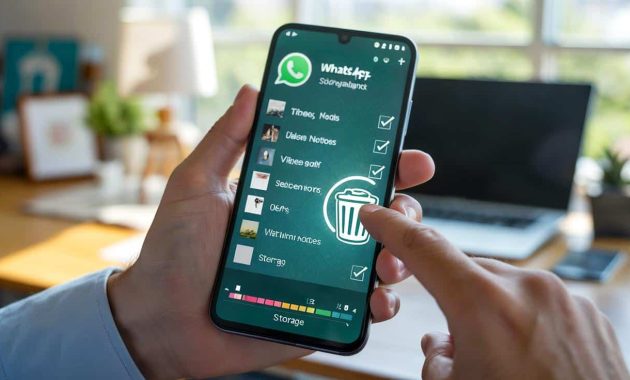
The culprit is often your chat app, not your camera or games.
WhatsApp quietly piles up photos, clips, voice notes, and documents in the background. A quick sweep through its hidden trash-like tools can reclaim gigabytes in minutes, without losing conversations.
Why WhatsApp fills up your storage
Group chats push a relentless stream of memes, status videos, and forwarded files. By default, WhatsApp auto-downloads much of this media. Every sticker, voice note, and video sits on your device. Multiply that by months of chat history and your storage buckles.
On Android, WhatsApp also holds cached thumbnails and temporary files. On iPhone, the Camera Roll can duplicate media if saving is enabled. Large videos and PDFs swell the total fastest. Old local backups on Android can bloat as well.
Heavy group chats and auto-download eat storage faster than your camera does on a normal day.
Where the hidden trash lives
WhatsApp includes a Storage Manager. Think of it as a built‑in recycle bin: it corrals bulky items, lets you review by size or chat, and removes them everywhere in that chat on your phone.
Open the Storage Manager
- Android: WhatsApp > tap the three dots > Settings > Storage and data > Manage storage.
- iPhone: WhatsApp > Settings > Storage and Data > Manage Storage.
You’ll see categories such as “Larger than 5 MB,” “Forwarded many times,” and a per‑chat breakdown. Tap a category or a chat to review, select items, and delete.
Use “Manage storage” to delete dozens of oversized videos at once while keeping your chats intact.
Quick, safe clean-up steps
- Enter “Manage storage,” open “Larger than 5 MB,” and select the biggest videos first.
- Open any chat with a high total, tap “Select,” choose all unneeded files, then delete.
- Confirm the prompts. Files are removed from your device and that chat on your phone; other people keep their copies.
What to delete and what to keep
Remove duplicate forwards, blurry images, voice notes you’ll never replay, and outdated PDFs. Keep personal clips, travel photos, and receipts you may need. If you’re unsure, start with “Forwarded many times” and the “Larger than 5 MB” bucket. These bring the fastest wins.
Stop the bloat going forward
Turn off media auto-download
- Android: Settings > Storage and data > Media auto-download. Disable Photos, Audio, Videos, Documents for mobile data and roaming. Keep Wi‑Fi strict too if storage runs low.
- iPhone: Settings > Storage and Data > Media Auto-Download. Toggle off Photos, Audio, Videos, Documents.
You’ll still see media in chats. Tap to fetch what you need, when you need it. This small change dramatically slows future growth.
➡️ Plane vs train: how China’s high-speed rail threatens the profitability of long‑haul flights
➡️ In Japan, a toilet paper revolution no one saw coming
➡️ If your compost feeds plants but weakens soil structure, this is the cause
➡️ The 12th Cuirassier Regiment Has Developed Its Own Wire‑Guided Loitering Munition
Clear cache without losing chats (Android)
On your phone: Settings > Apps > WhatsApp > Storage > Clear cache. This removes temporary files, not messages or media. iPhone has no direct cache button; use WhatsApp’s Manage Storage instead.
Stop saving every image to your gallery
- Android: WhatsApp Settings > Chats > Media visibility. Turn it off to prevent automatic Gallery saves. You can change it per chat via chat info > Media visibility.
- iPhone: WhatsApp Settings > Chats > Save to Camera Roll. Set to Never or per chat under Contact/Group Info > Save to Camera Roll.
| Task | Android path | iPhone path |
|---|---|---|
| Manage storage | Settings > Storage and data > Manage storage | Settings > Storage and Data > Manage Storage |
| Auto‑download | Storage and data > Media auto-download | Storage and Data > Media Auto-Download |
| Stop gallery saves | Chats > Media visibility | Chats > Save to Camera Roll |
| Clear cache | App settings > Storage > Clear cache | Use Manage Storage |
Backups, safety, and what deletion really does
Deleting from Manage Storage removes the chosen media from that chat on your device. It doesn’t erase others’ copies. If you remove files, you might not be able to re‑download older media later, especially if the sender cleared it or server retention expired.
Cloud backups matter. Android uses Google Drive. iPhone uses iCloud. If you cleaned up and want those savings reflected in the cloud, run a fresh backup after the purge.
After a big cleanup, run a new WhatsApp backup so your cloud copy shrinks too.
- Android: Settings > Chats > Chat backup. Consider excluding videos to keep backups lean.
- iPhone: Settings > Chats > Chat Backup. Check the size and decide if videos should be included.
Both platforms offer end‑to‑end encrypted backups. Keep your encryption password or key safe or you’ll lose access to that backup.
Advanced clean-up for power users
Clean per chat, not just globally
Open a chat > tap the contact or group name > Media, Links, and Docs. Filter by type, select in bulk, and delete. This approach protects important personal threads while trimming noisy groups.
Use disappearing messages
For busy groups, set Disappearing Messages to 24 hours or 7 days. Future media auto‑expires on your device and theirs, which keeps storage under control without manual work.
Tidy the Android file tree with care
Android only: Files app > WhatsApp > Media shows folders for Images, Video, Animated Gifs, Voice Notes, and Documents. You can delete obvious clutter here, but avoid the Databases folder and anything you don’t recognize.
Practical tips that make a real difference
- Mute and archive meme‑heavy groups; open them on Wi‑Fi when needed, then clear recent media.
- Set a monthly calendar reminder: “WhatsApp storage sweep — 10 minutes.” Small, regular cleanups beat emergency purges.
- Ask work groups to share cloud links for large decks instead of uploading PDFs and videos to chats.
- For family albums, save only your top shots to the gallery; keep the rest in chat, then prune with Manage Storage.
Turning off auto‑download for videos in one active group can save hundreds of megabytes per week.
What to watch out for
Legal or work compliance may require you to retain certain chats or files. Check your policy before deleting. If you rely on a specific message as proof, export that chat or save the file to a secure folder first. If your phone is nearly full, free 1–2 GB before installing system updates to prevent failed installs.
A quick plan you can follow today
- Open Manage Storage and delete the top 50 largest files.
- Disable auto‑download for videos and documents.
- Stop saving media to the Camera Roll or Gallery by default.
- Set Disappearing Messages in your noisiest group.
- Run a fresh backup to lock in the savings.
The combination of WhatsApp’s hidden clean‑up tools, smarter download settings, and one monthly sweep keeps your phone fast. Photos open quicker, updates install on time, and that dreaded “storage almost full” alert stays away.